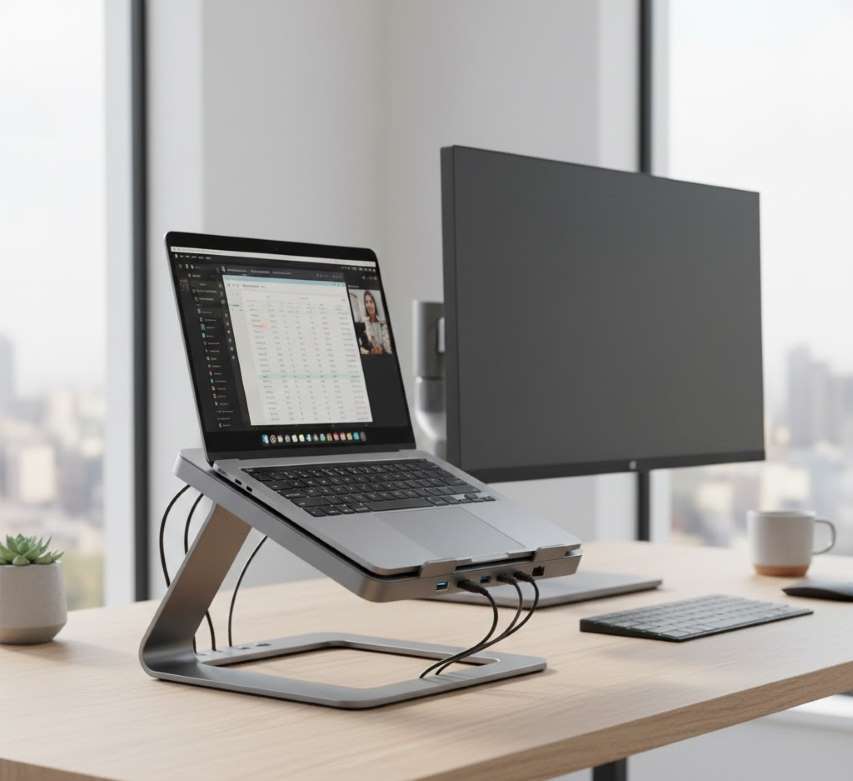
The Ultimate Workspace Transformation
A Docking Laptop Stand is an integrated hardware solution that combines the ergonomic benefits of a laptop riser with the connectivity and functionality of a full docking station. It elevates your laptop screen to eye level for proper posture while simultaneously connecting it to multiple peripherals (monitors, keyboard, mouse, storage, etc.) through a single cable. This creates a clean, organized, and highly productive desktop-like setup from a portable laptop.
Core Design & Components
Component | Description & Function |
|---|---|
| Stand/Riser Frame | The structural base, often made of aluminum, steel, or durable ABS plastic. Provides elevation and stability, with adjustable or fixed height/angle. |
| Integrated Docking Hub | The electronic core embedded in the stand. Contains multiple ports and a controller chip that manages data, video, and power delivery. |
| Port Array | Typically includes: USB-C/Thunderbolt (upstream), USB-A ports, HDMI/DisplayPort, Ethernet, SD/microSD card readers, 3.5mm audio jack, and a power delivery charging port. |
| Cable Management System | Channels or clips to route and conceal the laptop's power cable and peripheral cables, maintaining a clean aesthetic. |
| Ventilation & Cooling | Open design or integrated fans to promote airflow under the laptop, preventing thermal throttling. |
| Compatibility Cradle | Some models have an adjustable or removable tray to securely hold different laptop sizes (13" to 17"). |
How It Works: The Single-Cable Dream
Connection: Your laptop connects to the stand via a single USB-C or Thunderbolt cable (the upstream cable).
Data & Video Transmission: This single cable carries data for all connected peripherals (keyboard, mouse, webcam, storage) and video signals to one or two external monitors.
Power Delivery (PD): The same cable delivers power from the stand's power adapter to your laptop, charging it at high wattage (often 60W-100W).
Expansion: You permanently connect all your desktop peripherals (monitors, wired network, speakers, etc.) directly to the ports on the stand/dock.
Docking/Undocking: To start work, you simply place the laptop on the stand and plug in the single cable. To leave, you unplug that one cable and take your laptop. All peripherals remain connected to the dock.
Key Features & Specifications
| Feature Category | Key Specs & Considerations |
|---|---|
| Video Output | Number of monitor supports (e.g., Dual 4K @ 60Hz), and port types (HDMI 2.0, DisplayPort 1.4). Critical for multi-display users. |
| Data Ports | Quantity and speed of USB ports (e.g., USB 3.2 Gen 2 at 10Gbps). Includes USB-C downstream ports. |
| Networking | Gigabit Ethernet (1000/100/10 Mbps) for a stable, fast wired connection. |
| Power Delivery (PD) | Wattage delivered to the laptop (e.g., 90W). Must meet or exceed your laptop's requirement for charging under load. |
| Card Readers | SD and/or microSD card reader speeds (UHS-I, UHS-II). |
| Adjustability | Height, tilt, and sometimes rotation adjustments for optimal ergonomics. |
| Compatibility | Works with Windows, macOS, ChromeOS. Thunderbolt stands require laptops with Thunderbolt ports. |
| Daisy-Chaining | (Thunderbolt models) Ability to connect another Thunderbolt device through the dock. |
Types of Docking Laptop Stands
| Type | Description | Best For |
|---|---|---|
| USB-C Docking Stand | Uses USB-C with DisplayPort Alt Mode. Common, cost-effective. Supports dual monitors with compatible laptops. | Most users with modern laptops (post-2017). |
| Thunderbolt 3/4 Docking Stand | Uses Thunderbolt protocol. Maximum performance: highest video bandwidth (dual 4K+), fastest data transfer (40Gbps), and daisy-chaining. | Power users, creative pros, those with high-bandwidth needs and Thunderbolt laptops. |
| Multi-Function Adjustable Stand | Focus on extensive ergonomic adjustability (height, tilt, swivel) with robust docking. | Users prioritizing perfect ergonomics above all else. |
| Minimalist Fixed-Angle Stand | Sleek, simple design with fixed elevation and integrated hub. | Users wanting a clean, permanent setup with basic peripheral connections. |
Primary Benefits & Advantages
Ergonomic Health: Elevates screen to reduce neck and back strain, promoting a neutral viewing angle.
Single-Cable Convenience: The ultimate in simplicity for docking/undocking, saving time and reducing cable clutter.
Desktop-Like Expansion: Transforms a laptop into a full workstation with multiple monitors, wired internet, peripherals, and storage.
Improved Thermal Performance: Raising the laptop improves airflow, reducing heat buildup and maintaining performance.
Cable & Space Management: Consolidates cables and frees up desk space from separate docks and stands.
Professional Aesthetic: Creates a clean, organized, and permanent-looking workspace.
Enhanced Productivity: Facilitates a multi-monitor workflow and quick transitions between mobile and desktop modes.
Limitations & Considerations
Cost: High-quality docking stands are a significant investment compared to separate stand + basic dock.
Laptop Compatibility: Must match your laptop's ports (USB-C vs. Thunderbolt) and power requirements.
Fixed Desk Location: The setup is essentially permanent at one desk location.
Weight & Portability: While the laptop remains portable, the stand itself is a desktop fixture.
Potential Bandwidth Limits: Non-Thunderbolt USB-C docks may have limitations on monitor resolution/refresh rate combinations.
Driver/Software: Some docks require specific drivers for full functionality on Windows; macOS is typically plug-and-play.
Step-by-Step: Setting Up Your Docking Stand
Unbox & Position: Place the stand on your desk in your desired location.
Connect Peripherals: Plug your external monitors, keyboard, mouse, Ethernet, speakers, etc., into the appropriate ports on the stand.
Connect Power: Plug the stand's included power adapter into an outlet and into the stand's DC-in port.
Install Software/Drivers (if needed): On Windows, visit the manufacturer's website to install the latest dock firmware or drivers for optimal monitor and Ethernet support.
Place & Connect Laptop: Set your laptop onto the stand's cradle. Connect the provided USB-C/Thunderbolt cable from the stand to your laptop.
Configure Displays: Use your OS's display settings (System Preferences on Mac, Settings > Display on Windows) to arrange your external monitors.
Cable Management: Use the built-in channels to route and secure the laptop's power cable and any loose cords.
Buyer's Guide: How to Choose the Right One
Check Laptop Compatibility: Verify your laptop's port type (USB-C with DP Alt Mode? Thunderbolt 3/4?) and its power requirement (e.g., 65W, 100W).
List Your Must-Have Ports: How many monitors (and at what resolution)? How many USB devices? Need Ethernet and SD card reader?
Determine Video Needs: For dual 4K monitors at 60Hz, you'll need a high-bandwidth dock (Thunderbolt or high-end USB-C).
Consider Ergonomics: Do you need height adjustability, or is a fixed angle sufficient?
Assess Build Quality: Look for metal construction for durability and stability, especially for larger laptops.
Research the Chipset: Brands like DisplayLink (software-driven) or Intel Titan Ridge/JHL (Thunderbolt) offer different performance and compatibility.
Read Reviews on Reliability: Look for feedback on thermal performance, long-term stability, and customer support.
Set a Budget: Prices range from ~$150 for basic models to $400+ for premium Thunderbolt adjustable stands.
The Command Center for the Modern Professional
A Docking Laptop Stand is more than an accessory; it is a strategic upgrade to your fundamental work environment. It solves multiple problems simultaneously: poor posture, cable chaos, and limited connectivity. By bridging the gap between the mobility of a laptop and the power of a desktop, it enables a seamless, efficient, and healthy workflow. For hybrid workers, creatives, developers, and anyone who values a refined and productive workspace, investing in a well-chosen docking stand is an investment in daily comfort, long-term wellness, and sustained performance. It turns your laptop from a portable computer into the beating heart of a powerful, personalized command center.
 |  |  |
 |  |  |