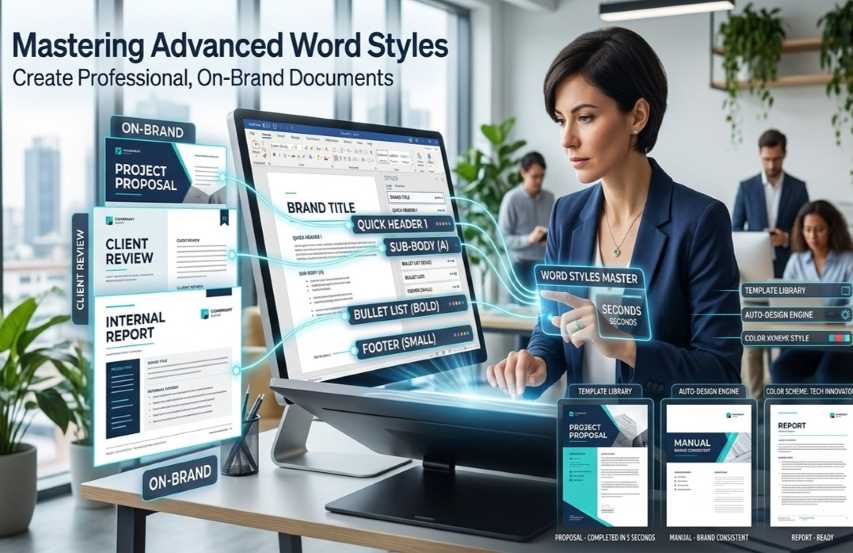
Microsoft Word’s Styles feature is far more than a simple formatting tool—it is the foundation for creating professional, branded documents that are consistent, efficient, and fully automated. By mastering advanced Styles, you can enforce brand identity (fonts, colors, logos, and spacing), enable one-click updates across hundreds of pages, and automate repetitive elements such as tables of contents, numbered lists, captions, and cross-references.
This step-by-step guide walks you through everything from the fundamentals to expert-level techniques. Follow the steps exactly as written, and you will transform Word from a basic word processor into a powerful branding and automation engine.
Step 1: Understand Why Styles Are Essential for Branding and Automation
Consistency: Every heading, paragraph, caption, or bullet uses the exact same formatting. Change the style once → the entire document updates instantly.
Branding: Lock in corporate fonts, colors, logo placement, and spacing so every proposal, report, or contract looks identical.
Automation: Styles power Word’s built-in features (Table of Contents, List of Figures, cross-references, multilevel numbering, and templates).
Efficiency: Reduce formatting time by 80–90 % and eliminate manual errors.
Pro Tip: Always work in a .docx file or, better, a .dotx template file for reusable branding.
Step 2: Open and Master the Styles Pane (Your Control Center)
Go to the Home tab → Styles group.
Click the small dialog box launcher (tiny arrow in the bottom-right corner of the Styles group) or press Ctrl + Alt + Shift + S.
The Styles pane opens on the right. Keep it docked and visible at all times when working professionally.
Advanced View:
Click Options (bottom-right of the pane) → Set “Show: All styles” and “Select styles to show: All styles”.
Enable Show Preview and Show Next Formatting for full visibility.
Step 3: Master the Built-in Styles (Never Start from Scratch)
Word provides a professional foundation:
Heading 1 to Heading 9 – For document hierarchy (critical for TOC automation).
Normal – Base paragraph style.
Title, Subtitle, Quote, Caption, Table, List Paragraph, etc.
Best Practice: Never modify these built-in styles directly. Instead, create custom styles based on them so updates remain linked.
Step 4: Create and Modify Advanced Custom Styles
To create a new style:
Format a paragraph exactly as you want it (font, size, color, spacing, alignment, borders, etc.).
Right-click the formatted text → Styles → Save Selection as a New Quick Style.
Or, in the Styles pane, click the New Style button (bottom left, looks like a plus sign with a paragraph icon).
Advanced Style Settings Window (this is where mastery happens):
Name: Give it a clear, branded name (e.g., “Brand-Heading1-Blue”, “Company-BodyText”).
Style type:
Paragraph (most common)
Character (for inline text like product names)
Linked (best of both)
Table or List for specialized use
Style based on: Always link to “(no style)” or a parent style (e.g., Heading 1 based on Normal) for cascading updates.
Style for following paragraph: Set Heading 1 → automatically followed by Body Text. Huge time-saver.
Formatting tab: Set font, paragraph spacing (Before/After), line spacing (Exactly 1.15 or 1.5), indentation, and borders.
Format button (bottom left) → access:
Numbering (for multilevel lists)
Text Effects (shadows, glows for branding)
Border and Frame (for pull quotes or sidebars)
Branding Tip: Use your company’s official color palette under Format → Font → Font color → More Colors → Custom (enter HEX codes).
Step 5: Build a Complete Branded Style Set
Create a full professional suite:
Brand-Title
Brand-Heading 1 (large, bold, brand color)
Brand-Heading 2 (slightly smaller, different shade)
Brand-BodyText (with precise line spacing and justified alignment)
Brand-Caption (for tables and figures)
Brand-BulletList and Brand-NumberedList
Brand-Header and Brand-Footer (linked to header/footer sections)
Brand-LogoPlaceholder (character style for inline logos)
Once created, select all your styles → right-click in the Styles pane → Save Selection as a New Quick Style Set → name it “Company-Brand-2026”.
Step 6: Integrate Themes for Instant Professional Branding
Go to Design tab → Document Formatting group.
Click Themes → choose a base theme or Save Current Theme after customizing.
Customize Colors, Fonts, and Effects to match your brand guidelines exactly.
Click Set as Default so every new document uses your branding.
Advanced: Link your custom styles to the theme colors so changing the theme color palette automatically updates the entire document.
Step 7: Automate Document Elements Using Styles
Table of Contents (TOC):
Apply Heading 1–3 styles to all headings.
Place cursor where TOC should appear → References tab → Table of Contents → Custom Table of Contents.
Check “Show page numbers” and “Use hyperlinks”. Word automatically pulls only styled headings.
Figures, Tables, and Captions:
Use Brand-Caption style.
References → Insert Caption → choose label → Word auto-numbers and updates.
Multilevel Numbering & Legal/Technical Numbering:
Create a new List style via Home → Multilevel List → Define New Multilevel List.
Link each level to your Brand-Heading styles.
This gives you automatic 1.1, 1.1.1, A., (a), etc., that update when you reorder sections.
Cross-References:
References → Cross-reference → Reference type “Heading” or “Figure” → Word inserts dynamic fields that update automatically.
Headers & Footers with Branding:
Double-click header → insert your logo (as picture) → apply Brand-Header style.
Use Different First Page and Different Odd & Even Pages for advanced layouts.
Step 8: Create a Professional Document Template (.dotx)
Set up an entire blank document with all your styles, header, footer, and logo.
File → Save As → choose Word Template (*.dotx).
Store it on your company SharePoint or OneDrive.
To use: File → New → Personal templates → select your branded template.
All future documents will inherit perfect branding and automation.
Step 9: Advanced Management Tools
Style Inspector (Styles pane → bottom left button): See exactly which styles are applied and clear overrides.
Reveal Formatting (Shift + F1): Compare any text to your styles.
Organizer (Styles pane → Manage Styles → Import/Export): Copy styles between documents or templates.
Restrict Formatting (Review tab → Protect → Restrict Editing → “Allow only this type of editing: Filling in forms” + check “Styles”): Force users to use only your approved styles.
Pro Tip: Regularly run File → Info → Check for Issues → Inspect Document to remove hidden formatting overrides.
Step 10: Best Practices for Professional Results
Never use direct formatting (bold, italic, color buttons) — always apply a style.
Limit to 8–12 core styles for most documents.
Test on multiple devices and when converting to PDF.
Train your team: Share the .dotx template and a one-page “Style Cheat Sheet”.
Version your templates (e.g., Company-Brand-v2.3.dotx).
For accessibility: Ensure heading levels are logical and contrast ratios meet WCAG standards.
Final Result
Once mastered, you will produce documents that:
Look instantly professional and on-brand.
Update in seconds when branding changes.
Automatically generate perfect TOCs, indexes, and numbered sections.
Save hours of manual work every week.
Start today: Open Microsoft Word, create your first custom “Brand-Heading1” style, and build your complete branded template. Within one hour you will have a system that scales to reports, proposals, manuals, and entire corporate document libraries.
Master these advanced Styles techniques and you will never format a professional document the same way again. Your documents will consistently represent your brand with precision, automation, and excellence.
 |  |  |
 |  |  |